
The Ultimate Guide: How to Enable Developer Options on Firestick & Android TV
Want to unlock the full power of your Firestick or Android TV box? Enabling Developer Options is the critical first step to “jailbreaking” your device, allowing you to install powerful streaming apps that aren’t available in the official app stores. This guide provides simple, step-by-step instructions with screenshots for both Fire TV and Android/Google TV devices.
By following these steps, you’ll be able to sideload applications and transform your streaming device into a true entertainment powerhouse. Let’s get started!
How to Enable Developer Options on Firestick & Fire TV
Recently, Amazon updated its Fire OS, which has made the “Developer Options” menu hidden by default. Don’t worry, it’s still there! You just need to know this simple trick to reveal it.
Note: Amazon is slowly rolling out a new operating system called “Vega” to replace Fire OS. While it’s unclear what future changes this will bring, this method currently works on all modern Fire TV devices.
Step-by-Step Instructions for Fire TV:
- From the Fire TV home screen, navigate to the Settings icon (the gear symbol).
- In the Settings menu, select My Fire TV.
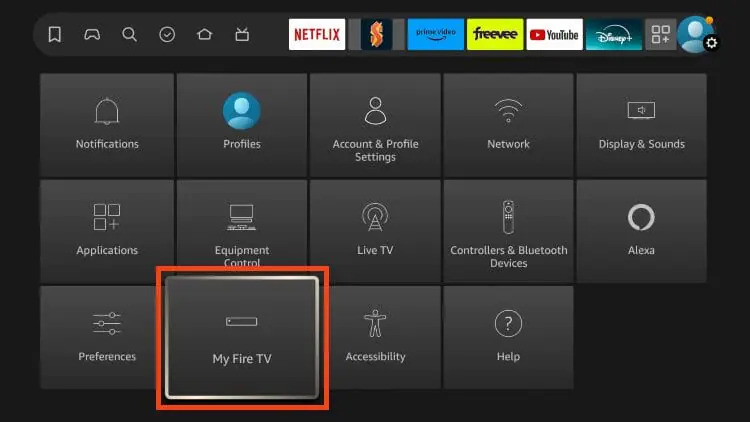
- Choose About from the list.
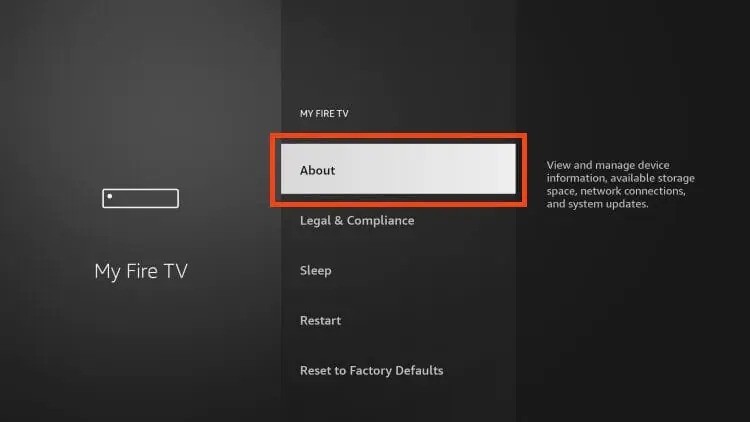
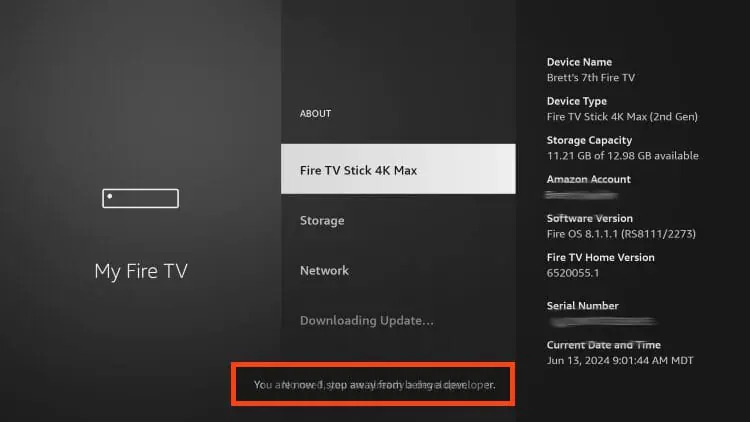
- Highlight the first option, which is the name of your device (e.g., Fire TV Stick 4K Max). Now, press the OK button on your remote 7 times in a row. You will see a small message at the bottom of the screen that says, “No need, you are already a developer.” This confirms you’ve done it correctly!
- Press the back button once on your remote. You will now see Developer Options has appeared as a new menu item!
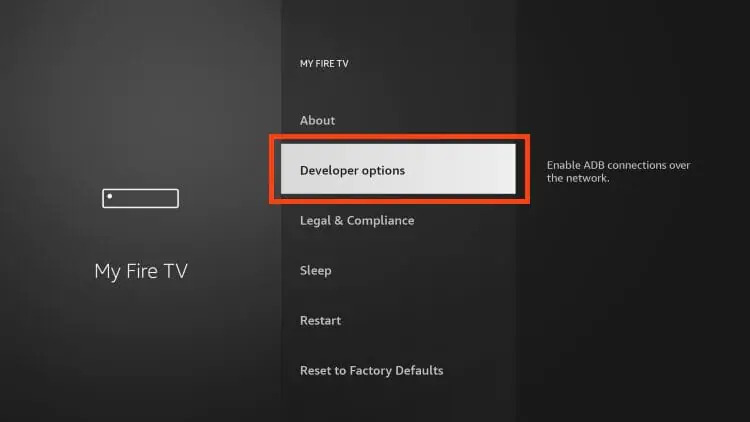
That’s it! You’ve successfully unlocked Developer Options on your Firestick. Now you can proceed to enable “Install unknown apps.”
How to Enable Developer Options on Android TV / Google TV
This process is very similar and works on all variations of Android TV and Google TV boxes, including popular devices like the onn. 4K Pro, NVIDIA SHIELD, and more.
Step-by-Step Instructions for Android TV:
- From your device’s home screen, find and open the Settings menu.
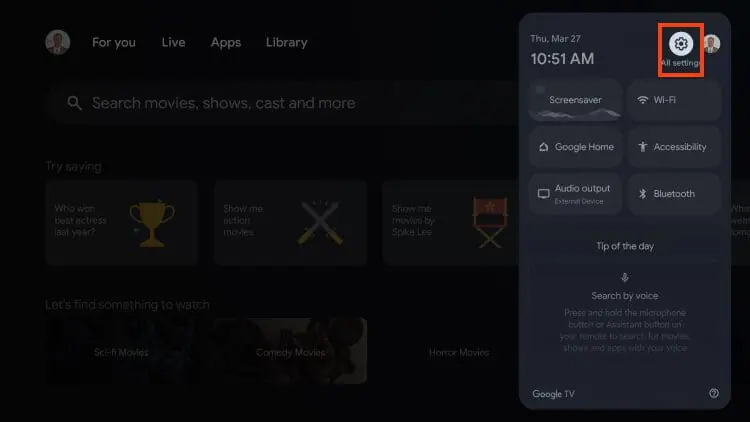
- Scroll down and select System.
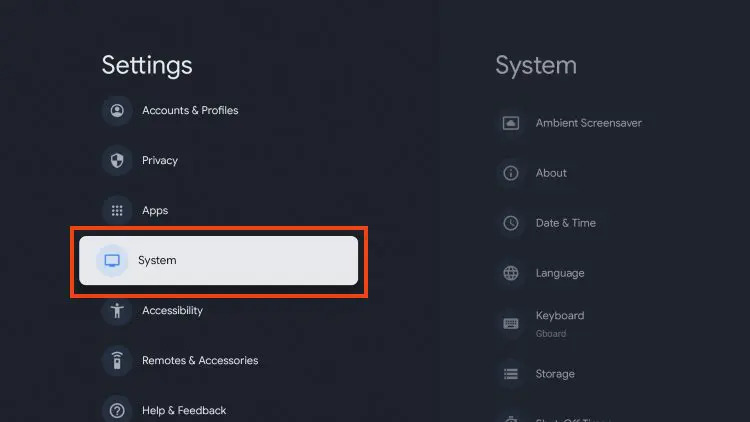
- In the System menu, choose About.
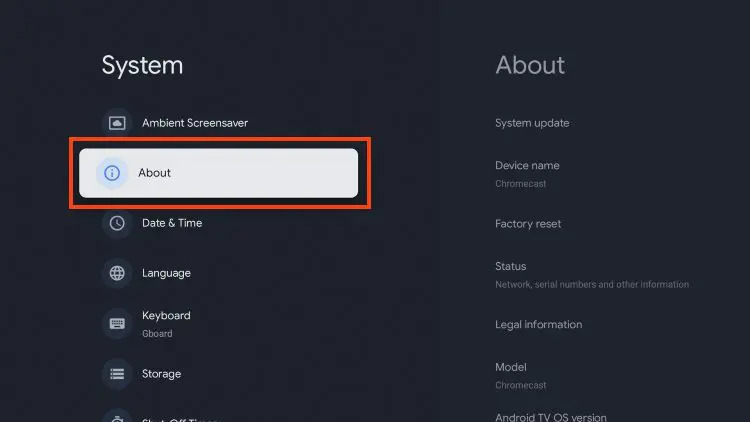
- Scroll down to find the Android TV OS build number. Click it rapidly 7 times.
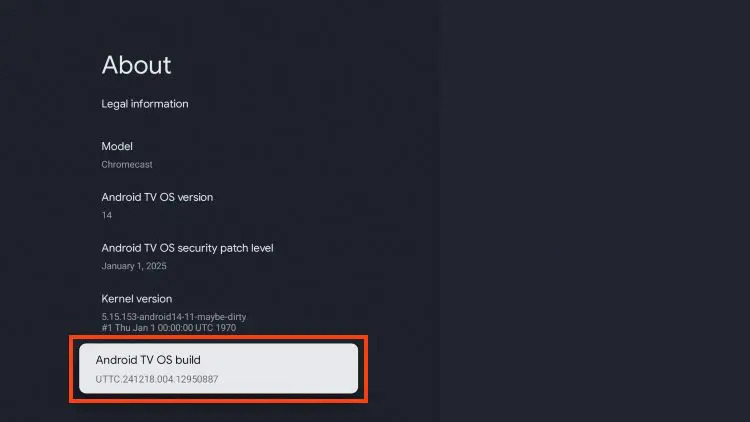
- A notification will appear at the bottom of the screen stating, “You are now a developer!”.
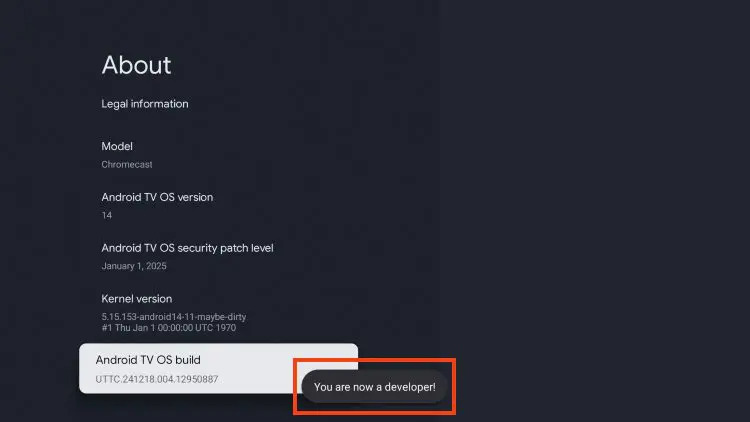
- Press the back button to return to the System menu. You will now see { } Developer options as a new choice in the list.
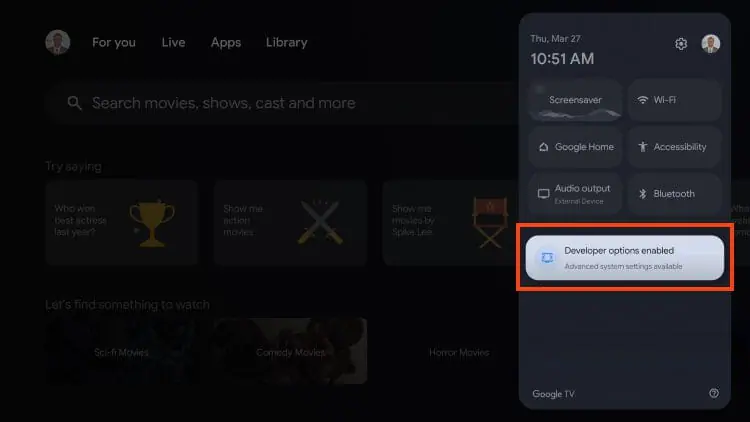
- If you wish to disable this feature later, simply go into Developer options and turn off the toggle switch at the top.
What’s Next? Time to Supercharge Your Device!
Congratulations! You’ve successfully unlocked the most important feature on your streaming device. By enabling Developer Options, you’ve removed the restrictions set by Google and Amazon, giving you the freedom to install the apps you truly want.
Now that your device is ready, the next step is to find the best applications. For the ultimate streaming experience, check out our IPTV services and setup guides to get started.